


Add Control Points
Add Control Points
1. Feature Description
During the point cloud collection process, proper use of the <Control Point> tool allows you to add control points. Multiple projects can be stitched together via control points that share the same absolute position.
2. Feature Tutorial
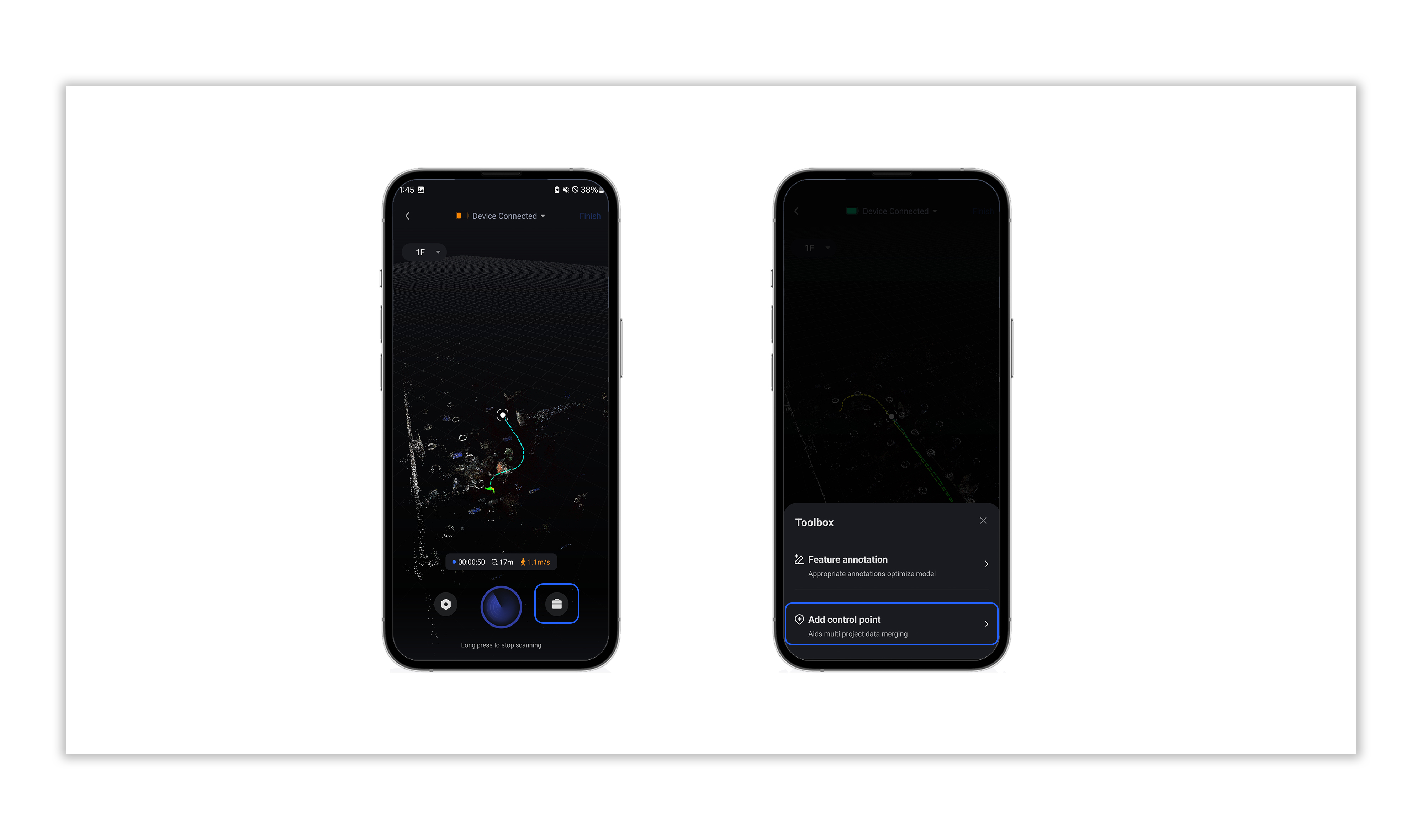
2.1 Tap the <Toolbox> icon in the bottom right corner and select <Add Control Point>;
2.2 Select the <Control Point Number> to complete the addition;
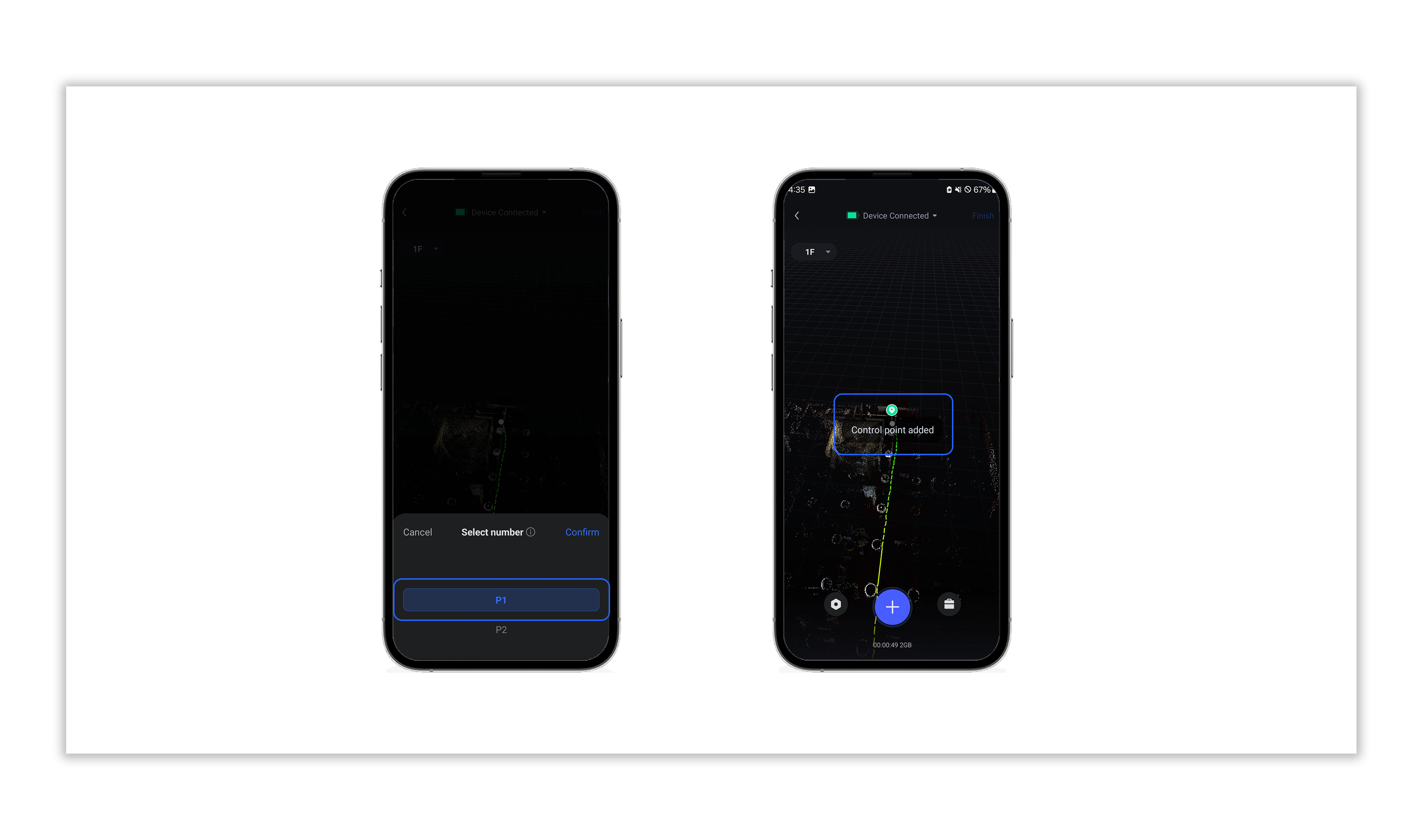
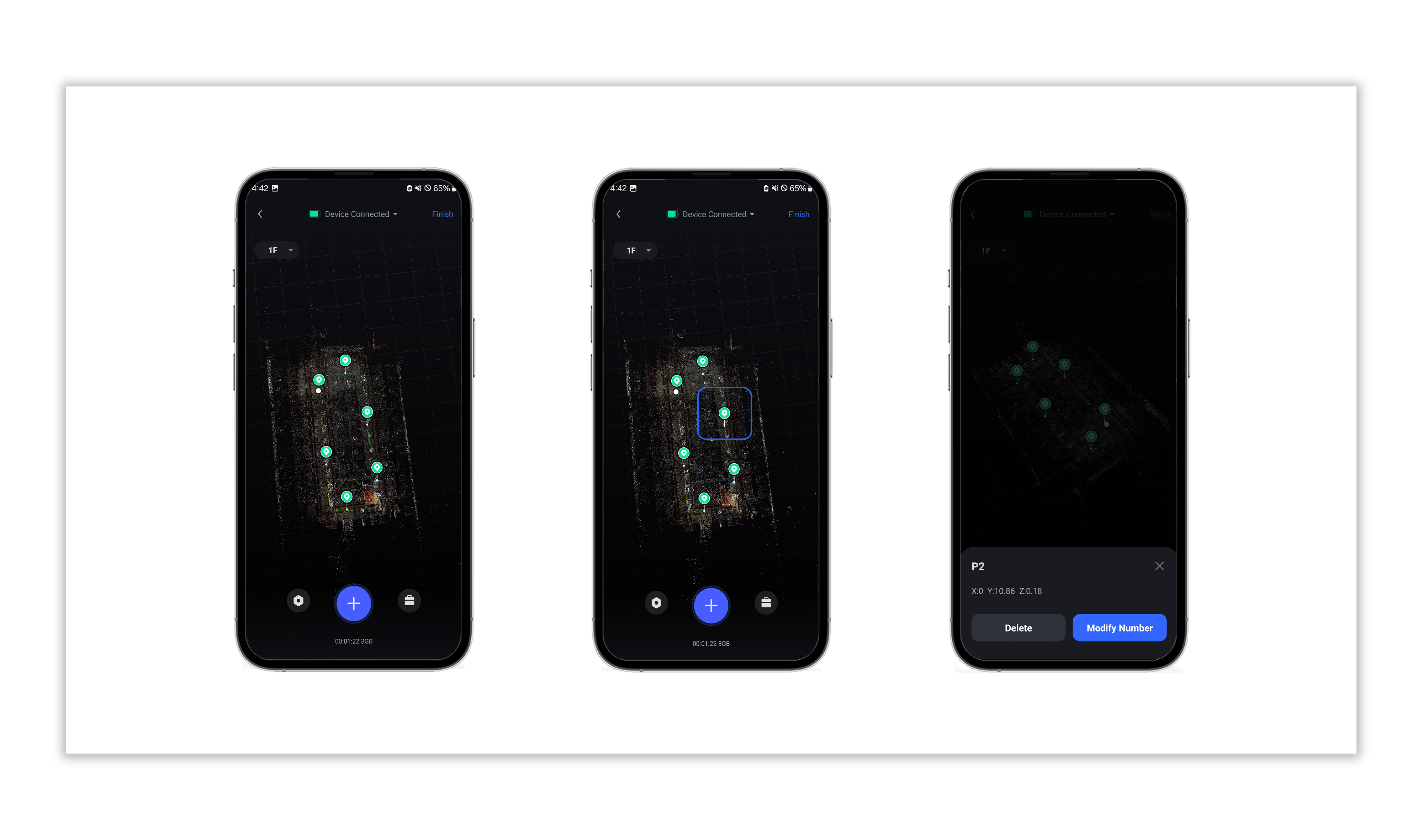
2.3 The location information of the added control points will be recorded in the collection track in the form of tags;
2.4 Tap the location information of the added control points to delete or modify them;
Note: If you want to stitch multiple tracks via control points, the number of control points with the same name between the two tracks must be ≥ 5; and the control points with the same name must be at the same absolute position.