Capture, share & collaborate: 3D virtual tour made easy - Realsee
  • Sign In
  • Product
  • Solution
  • Gallery
  • Support
  • Resources
  • Store
  • Product
    The effortless all-in-one 3D tour solution that doubles your profits.
    • Capture Device
      • Galois
        GaloisHot
        3D LiDAR Camera
      • REALSEE G1
        REALSEE G1
        Smartphone Gimbal
      • 360 Camera
        360 Camera
        Wide Compatibility
      • Mobile phone
        Mobile phone
        Capture Easily
    • 3D Tour Features
      • Editor Features
        Editor FeaturesHot
        Powerful 3D Tour Editing Features
  • Solutions
    Leading 3D Tour Producer, Tailored for Real Estate
    • Client Type
      • Real Estate Photographer
        Real Estate Photographer
        Effortless 3D tour, double your profits in no time.
      • Real Estate Agency
        Real Estate Agency
        Boost your listings with Realsee's pay-as-you-go 3D tour solution.
      • Real Estate Brokerage
        Real Estate Brokerage
        Professional-grade 3D solutions for real estate brokers.
    • Case Study
      • Commercial Real Estate
        Commercial Real Estate
        Professional LiDAR scanning for commercial spaces.
      • Residential Real Estate
        Residential Real Estate
        LiDAR-powered virtual home tours that accelerate sales.
      • Museum
        Museum
        Immerse visitors with LiDAR-captured 3D museum experiences.
      • Travel & Tourism
        Travel & Tourism
        Transform destinations with interactive LiDAR 3D tours.
  • Support
    Get help and resources for our services.
    • Support
      • Help Center
        Help Center
        Find FAQs and guides for your questions.
      • Contact Us
        Contact Us
        Contact our team for personalized inquiries.
  • Resources
    Explore valuable information and insights.
    • Resources
      • About Us
        About Us
        Learn more about our mission and team.
      • What's New
        What's New
        Discover what's new and improved.
      • Blog
        Blog
        Stay updated with latest news & creator stories via our blog.
      • Partners
        Partners
        Discover partnership opportunities with us.
  • Store
    Browse our products and services.
    • Plans
      • Credit Plans
        Credit Plans
        Purchase Realsee credits for 3D tour hosting and downloads with a pay-as-you-go option.
      • New User Free Trial
        New User Free Trial
        Learn about free benefits for new users.
    • Realsee Cameras
      • Galois M2
        Galois M2
        Purchase the professional LiDAR camera to elevate your business.
      • G1 Gimbal
        G1 Gimbal
        Contact sales for G1 gimbal inquiries.
Contact Us
Capture, share & collaborate: 3D virtual tour made easy - Realsee
Product
  • Product
    The effortless all-in-one 3D tour solution that doubles your profits.
    • Capture Device
      • Galois
        GaloisHot
        3D LiDAR Camera
      • REALSEE G1
        REALSEE G1
        Smartphone Gimbal
      • 360 Camera
        360 Camera
        Wide Compatibility
      • Mobile phone
        Mobile phone
        Capture Easily
    • 3D Tour Features
      • Editor Features
        Editor FeaturesHot
        Powerful 3D Tour Editing Features
Deliverables
  • Deliverables Downloads
Solution
  • Solutions
    Leading 3D Tour Producer, Tailored for Real Estate
    • Client Type
      • Real Estate Photographer
        Real Estate Photographer
        Effortless 3D tour, double your profits in no time.
      • Real Estate Agency
        Real Estate Agency
        Boost your listings with Realsee's pay-as-you-go 3D tour solution.
      • Real Estate Brokerage
        Real Estate Brokerage
        Professional-grade 3D solutions for real estate brokers.
    • Case Study
      • Commercial Real Estate
        Commercial Real Estate
        Professional LiDAR scanning for commercial spaces.
      • Residential Real Estate
        Residential Real Estate
        LiDAR-powered virtual home tours that accelerate sales.
      • Museum
        Museum
        Immerse visitors with LiDAR-captured 3D museum experiences.
      • Travel & Tourism
        Travel & Tourism
        Transform destinations with interactive LiDAR 3D tours.
Gallery
Support
  • Support
    Get help and resources for our services.
    • Support
      • Help Center
        Help Center
        Find FAQs and guides for your questions.
      • Contact Us
        Contact Us
        Contact our team for personalized inquiries.
Resources
  • Resources
    Explore valuable information and insights.
    • Resources
      • About Us
        About Us
        Learn more about our mission and team.
      • What's New
        What's New
        Discover what's new and improved.
      • Blog
        Blog
        Stay updated with latest news & creator stories via our blog.
      • Partners
        Partners
        Discover partnership opportunities with us.
Store
  • Store
    Browse our products and services.
    • Plans
      • Credit Plans
        Credit Plans
        Purchase Realsee credits for 3D tour hosting and downloads with a pay-as-you-go option.
      • New User Free Trial
        New User Free Trial
        Learn about free benefits for new users.
    • Realsee Cameras
      • Galois M2
        Galois M2
        Purchase the professional LiDAR camera to elevate your business.
      • G1 Gimbal
        G1 Gimbal
        Contact sales for G1 gimbal inquiries.
  • Contact Us
  • Sign In
  • Get Started Free
Help Center
  1. How to Capture Realsee 3D Tours
  2. Poincaré Capture
  3. Poincaré Collection Tutorial
  • Poincaré Capture
    • Poincaré Collection Tutorial
    • Add Close-up Photos
    • Add Control Points
  • Mobile Phone Capture
    • Mobile Phone Capture Overview
    • Multi-floor Space Capture with the mobile phone
  • Galois 3D LiDAR Camera Capture
    • Overview of the Galois Capture Functions
    • Pre-Capture Preparation
    • Start Capture
    • Multi-floor Space Capture
    • Co-Capture
    • Resuming a Scan (Modify Project) for Galois
    • Realsee App Project and Space Management Guide
    • How to Delete Your Realsee Account?
    • Galois Capture: Frequent Questions & Solutions
  • 360 Camera Capture
    • Panoramic Camera Introduction
    • Pre-Capture Preparation
    • Panoramic Camera Capture
  • Realsee G1 Gimbal Capture
    • REALSEE G1 Smart Gimbal Introduction
    • Pre-Capture Preparation of G1 Smart Gimbal
    • Realsee G1 Gimbal Capture
    • Multi-floor Space Capture with the G1 Device
    • G1 Capture: Frequent Questions & Solutions
  • Realsee G2 Gimbal Capture
    • Realsee G2 Gimbal User Manual
  • Advanced Capture Guidance
    • Multi-floor Space Capture
    • Capture a scenario with high similarity
    • Manual-Alignment Function Overview
  • Pano to 3D
    • Pano to 3D Feature
  • Poincaré Capture
    • Poincaré Collection Tutorial
    • Add Close-up Photos
    • Add Control Points
  • Mobile Phone Capture
    • Mobile Phone Capture Overview
    • Multi-floor Space Capture with the mobile phone
  • Galois 3D LiDAR Camera Capture
    • Overview of the Galois Capture Functions
    • Pre-Capture Preparation
    • Start Capture
    • Multi-floor Space Capture
    • Co-Capture
    • Resuming a Scan (Modify Project) for Galois
    • Realsee App Project and Space Management Guide
    • How to Delete Your Realsee Account?
    • Galois Capture: Frequent Questions & Solutions
  • 360 Camera Capture
    • Panoramic Camera Introduction
    • Pre-Capture Preparation
    • Panoramic Camera Capture
  • Realsee G1 Gimbal Capture
    • REALSEE G1 Smart Gimbal Introduction
    • Pre-Capture Preparation of G1 Smart Gimbal
    • Realsee G1 Gimbal Capture
    • Multi-floor Space Capture with the G1 Device
    • G1 Capture: Frequent Questions & Solutions
  • Realsee G2 Gimbal Capture
    • Realsee G2 Gimbal User Manual
  • Advanced Capture Guidance
    • Multi-floor Space Capture
    • Capture a scenario with high similarity
    • Manual-Alignment Function Overview
  • Pano to 3D
    • Pano to 3D Feature

Poincaré Collection Tutorial

Recent Update: March 24, 2026

1. Developing a Capture Plan

1.1 Space Survey and Preparation

Before starting the collection process, the user must conduct an on-site survey to understand the collection objects and their surrounding environment. It is also recommended to organize or remove unwanted items in the space to enhance the collection effect.

Indoor Spaces:

  • Survey all rooms within the indoor area and familiarize yourself with the spatial layout.
  • Open all <doors/curtains> in the areas to be collected in advance, and clear any obstacles in walking areas to ensure data continuity during collection.
  • Turn on appropriate lighting in the space, keep the collection site clean, and avoid factors that might affect the quality of point cloud data collection.

Outdoor Spaces:

  • Survey all target objects within the area and familiarize yourself with the connectivity of roads and the distribution of objects.
  • Clear any obstacles in walking areas and mark or block off hazardous areas to ensure both data continuity and personnel safety during collection.

1.2 Route Planning

Based on the on-site survey, design the optimal scanning route to minimize blind spots and avoid the need for additional scans post-collection. The scanning route should aim to form multiple closed loops to ensure positional accuracy and improve overall stitching precision. Scan all spatial point clouds according to the planned route.

Important Tip:
Currently, the Poincaré device supports a maximum collection duration of 30 minutes per project, with a walking trajectory of approximately 1.8–2 kilometers. The route design should take this limitation into account.

2. Starting the Collection

Collect Your First Point Cloud Data

2.1 Preparation at the Route Starting Point

  • At the starting point of the planned route, place the device steadily (on the ground or a tabletop).
  • The operator should avoid standing within the radar or color lens's field of view (it is recommended to crouch or stand directly behind the device).

2.2 Connecting the Device

  • Open the Ruis VR app homepage, connect to the Poincaré device, and click <Start Collection>.

2.3 Starting the Collection

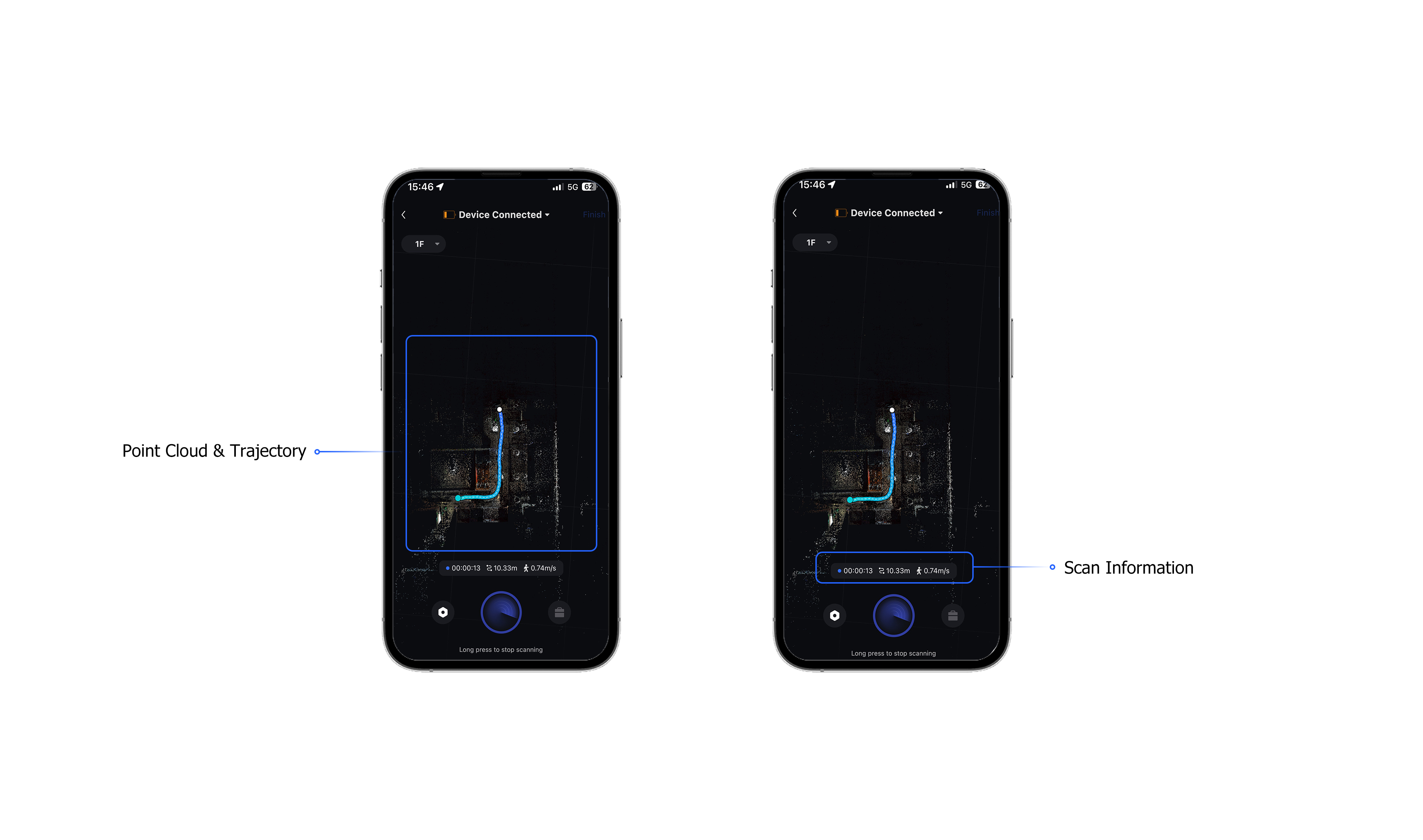
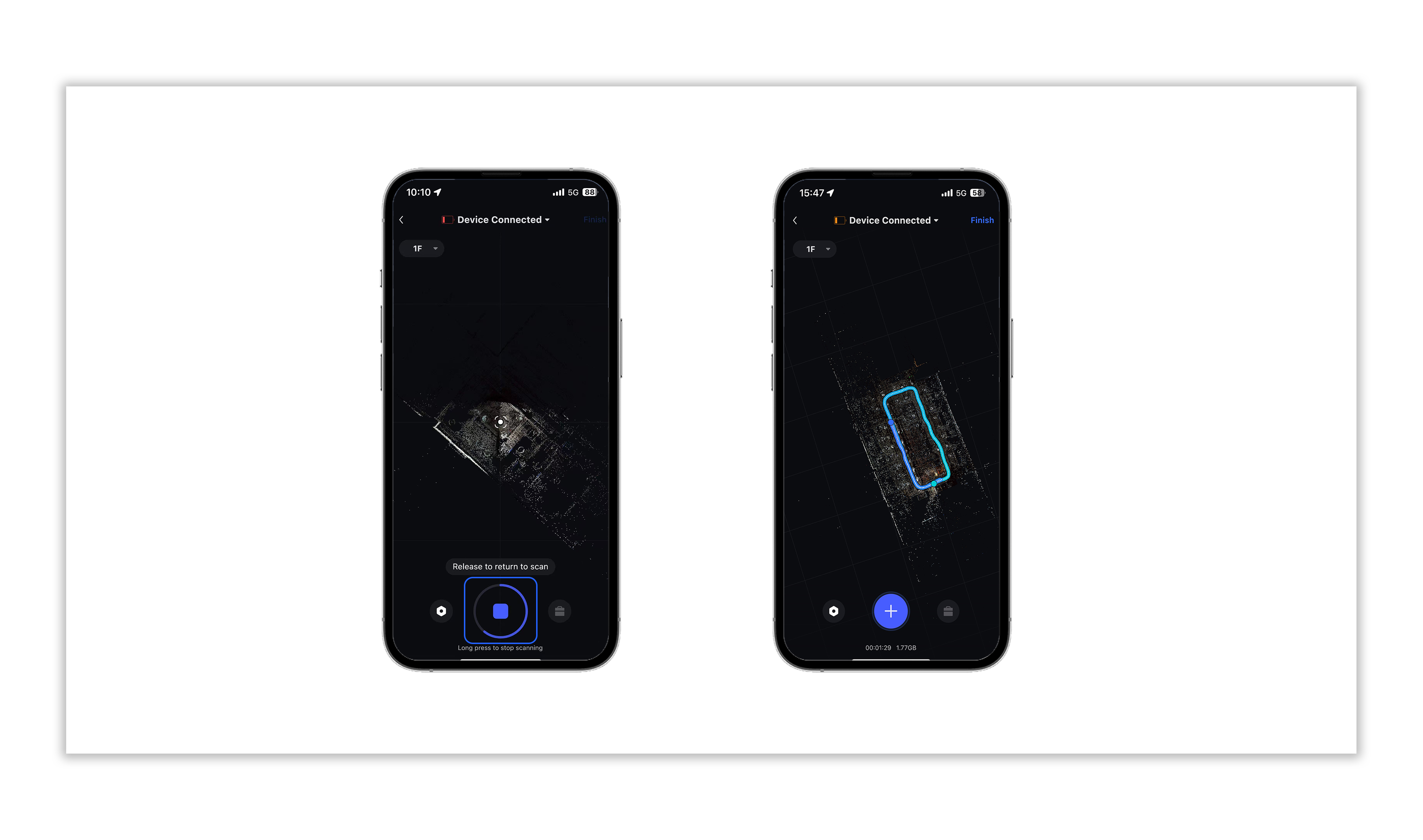
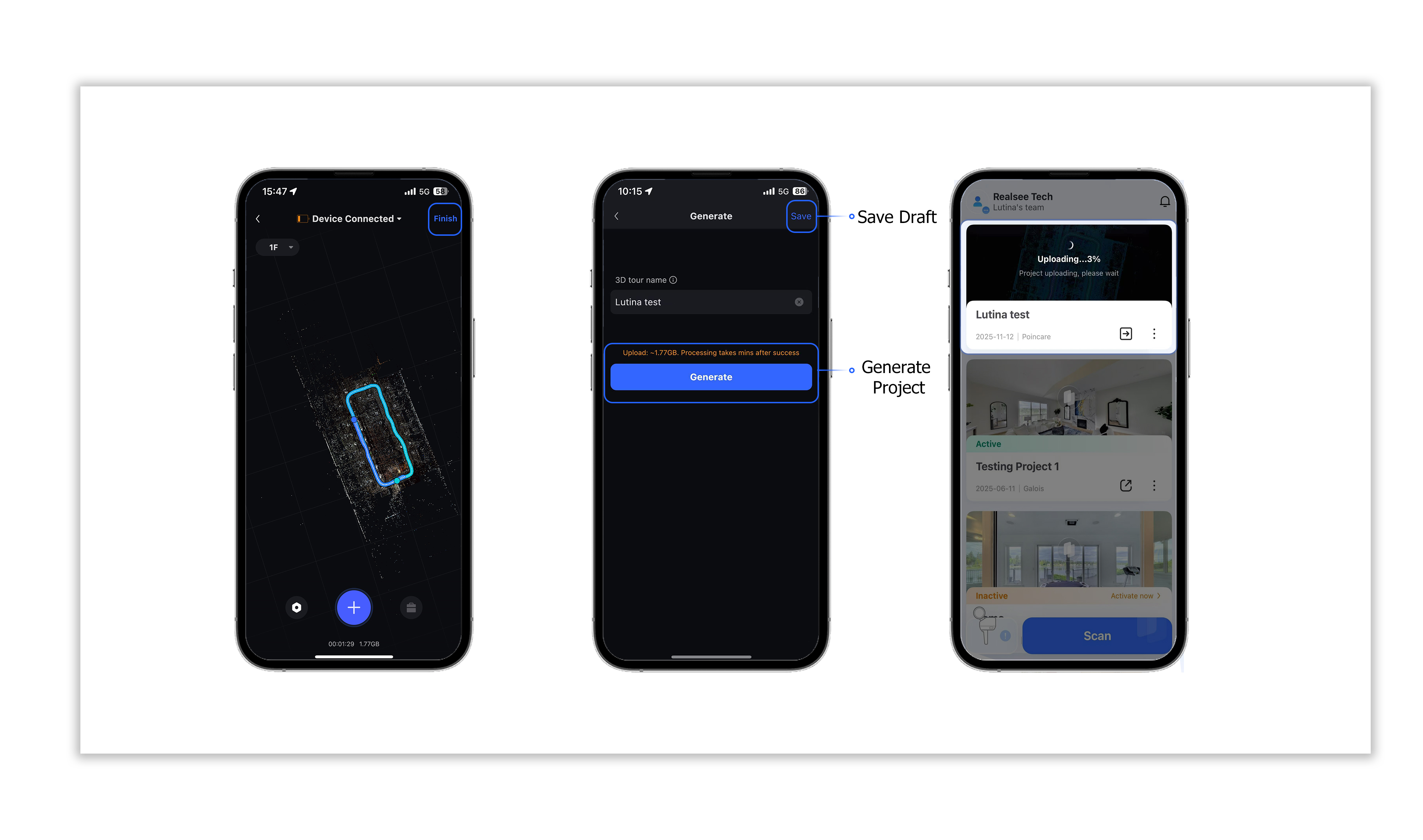
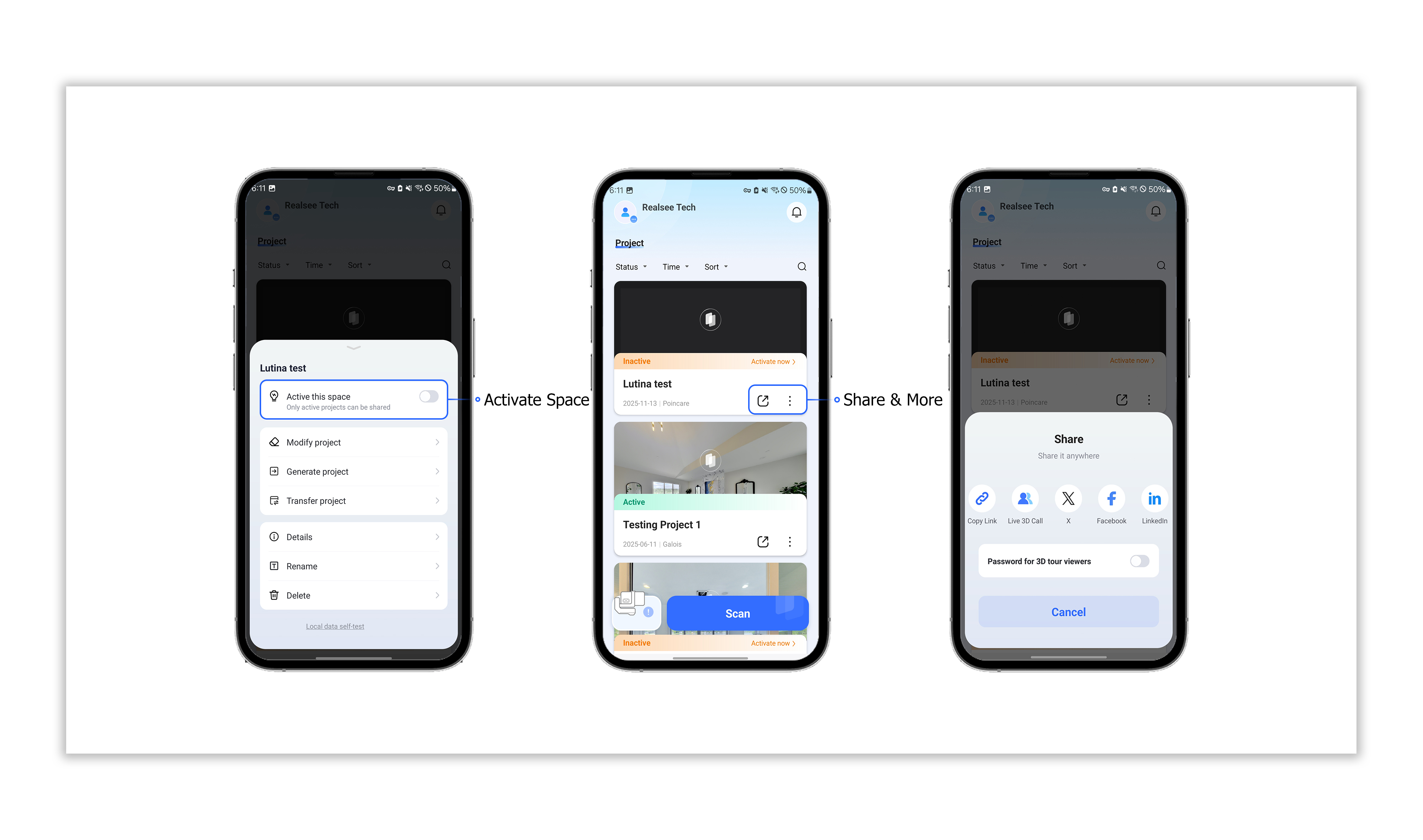
  • Enter the collection interface and click the <blue button at the bottom>. The blue button’s halo will start rotating, indicating that the Poincaré device is initializing.
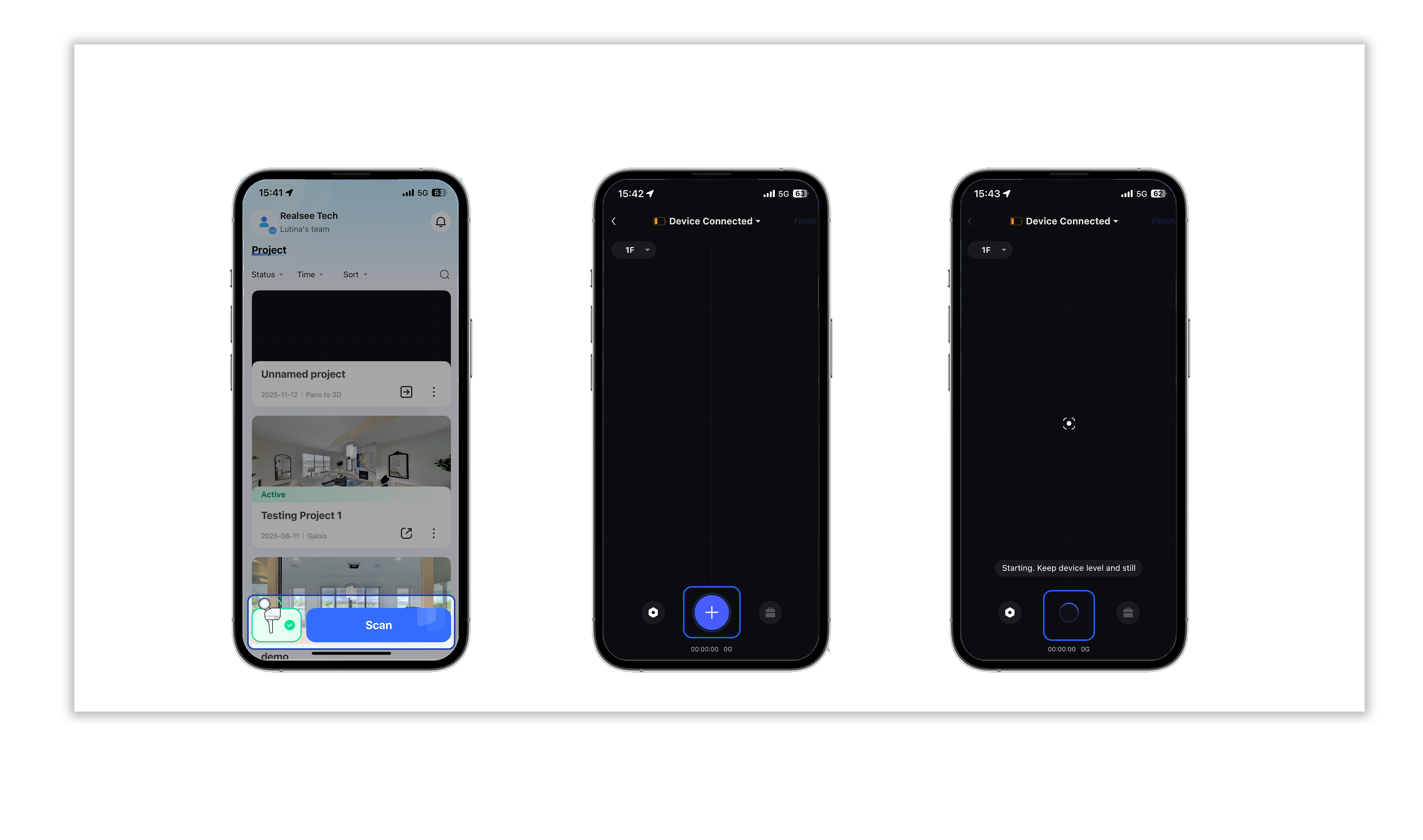
https://global-public.realsee-cdn.com/release/pagepress/wCJVNmKU/uploads/cbabecbf-ce07-4517-879b-90990ffbf9e0.jpg


https://global-public.realsee-cdn.com/release/pagepress/wqgaxytX/uploads/e9202ace-efb6-41cb-b963-a3f93a72156e.jpg


https://global-public.realsee-cdn.com/release/pagepress/UmgvICsn/uploads/c9abe7fb-a26c-4a24-b864-afbf6a4c6aa8.jpg


https://global-public.realsee-cdn.com/release/pagepress/LoCjnCca/uploads/afb953c5-e74c-44e7-91a2-506baf01040b.jpg


https://global-public.realsee-cdn.com/release/pagepress/cUiuaCSU/uploads/74c8b2ca-bbc4-490b-9fb7-471b96c49e3f.jpg

Was this article helpful?

YesNo

Next

Add Close-up Photos
  • Product
    • Galois
    • Realsee G1
    • 360 Camera
    • Mobile phone
  • Solution
    • Real Estate Photographer
    • Real Estate Agency
  • Resources
    • About Us
    • Partners
  • Quick links
    • Realsee App
    • Console
    • Help Center
    • Legal agreements
  • Contact Us
    LinkedInFaceBookYoutubeXRedditWhatsApp
Realsee
©Copyright 2026 Beike Realsee Technology (HK) Limited All rights reserved|Various trademarks held by their respective owners.