


Resuming a Scan (Modify Project) for Galois
This guide provides step-by-step instructions on how to use the Modify Project feature to resume or add data to an existing scan.
Note: This feature is currently only compatible with Realsee Galois series scanners.
Prerequisites
- Device Connection: Ensure your mobile device is successfully connected to the Galois scanner’s Wi-Fi.
- Battery Life: Confirm that both the scanner and your mobile device have sufficient power to complete the additional scanning.
Step-by-Step Instructions
Enable "Modify Project" Mode
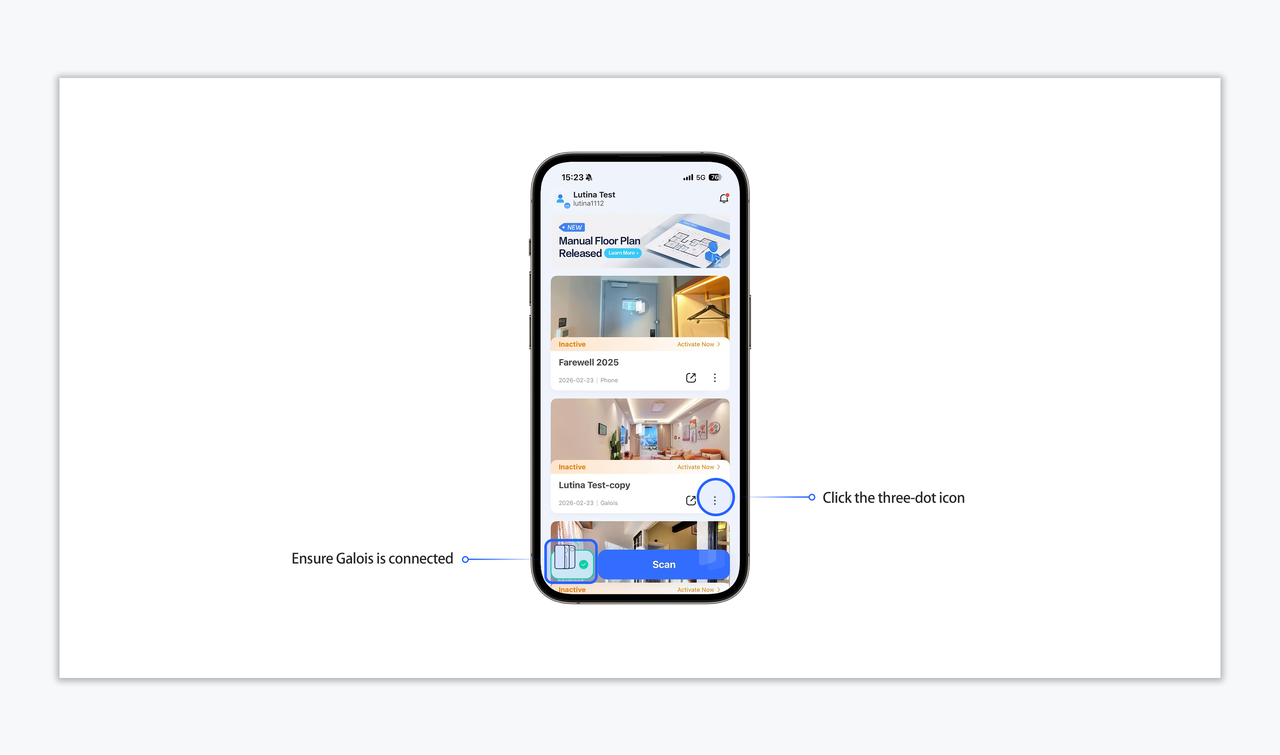
- Open the Realsee App and locate the project you wish to resume in the project list.
- Tap the "Three Dots" (More Settings) icon on the project card.
- Select "Modify Project" from the menu.
Download Project Data (If required)
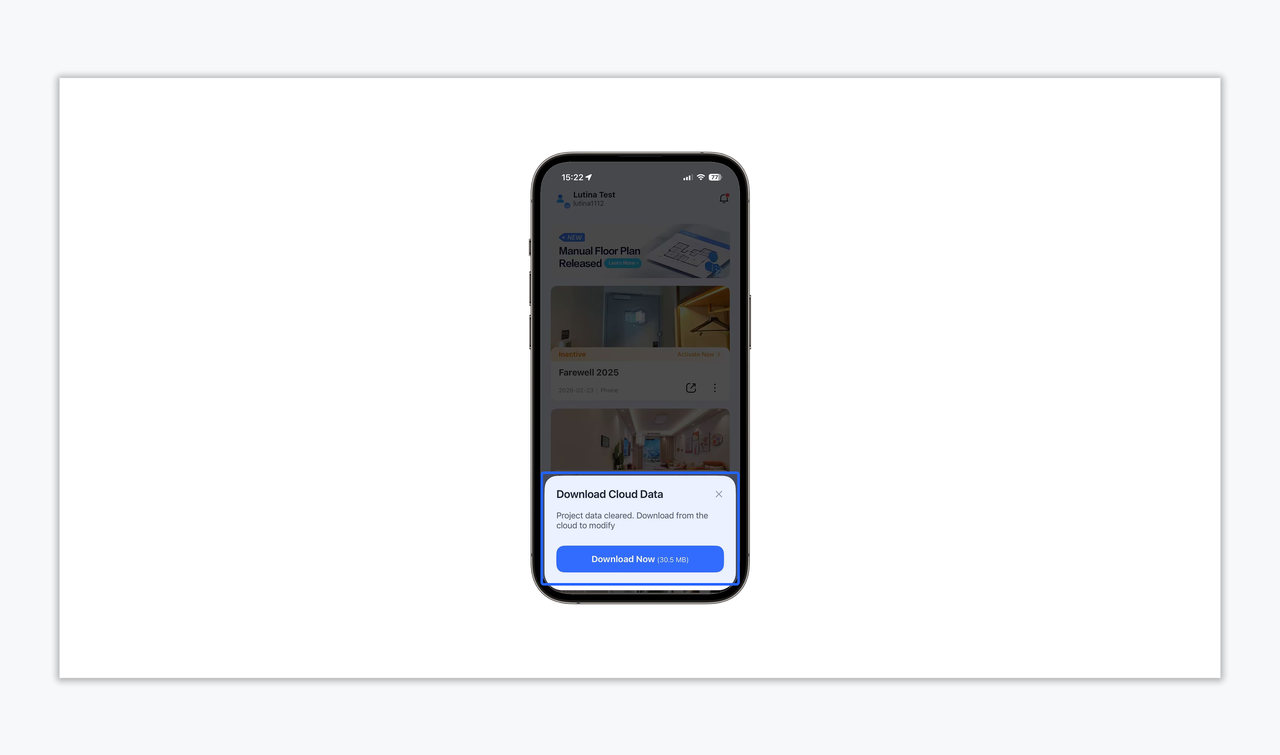
If the project data was previously cleared from your local device, you will be prompted to download it from the cloud before proceeding.
- Tap "Download Now" to start the retrieval process.
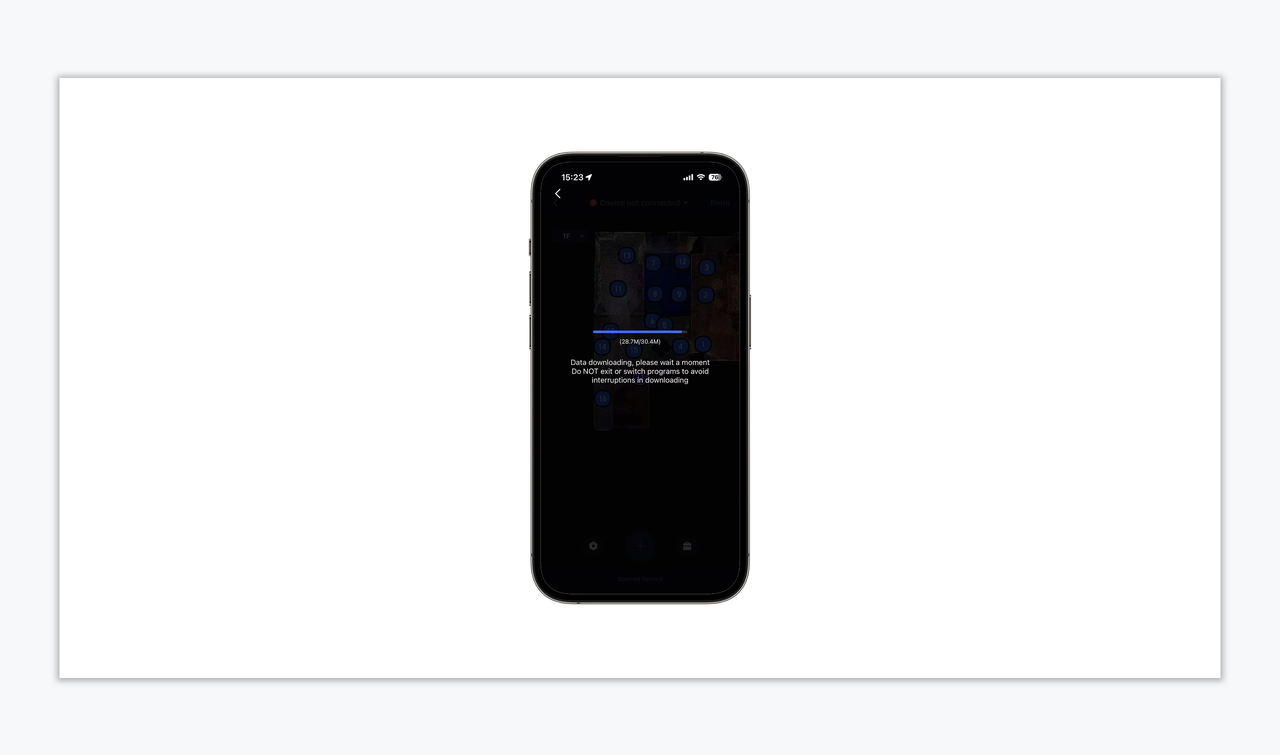
- Important: DO NOT exit the App or switch to other applications during the download. Interrupting the process may cause data sync errors.
Establish "Visual Co-visibility"
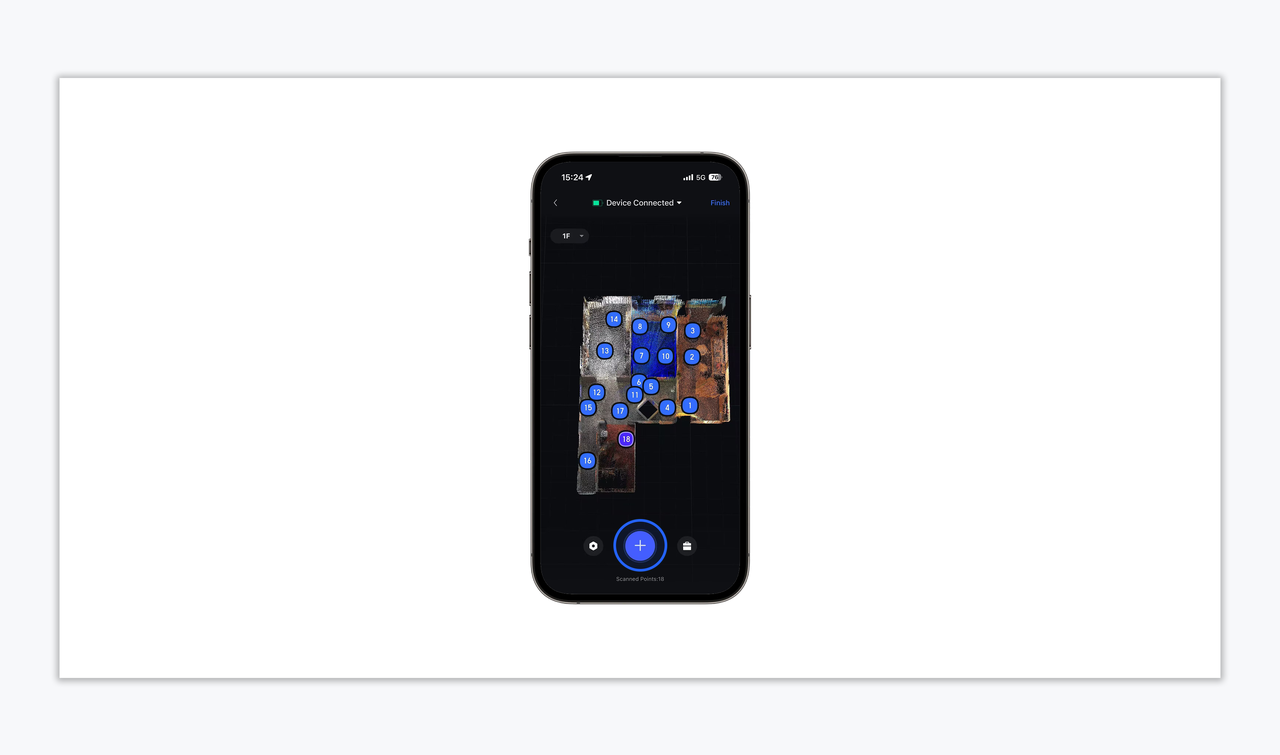
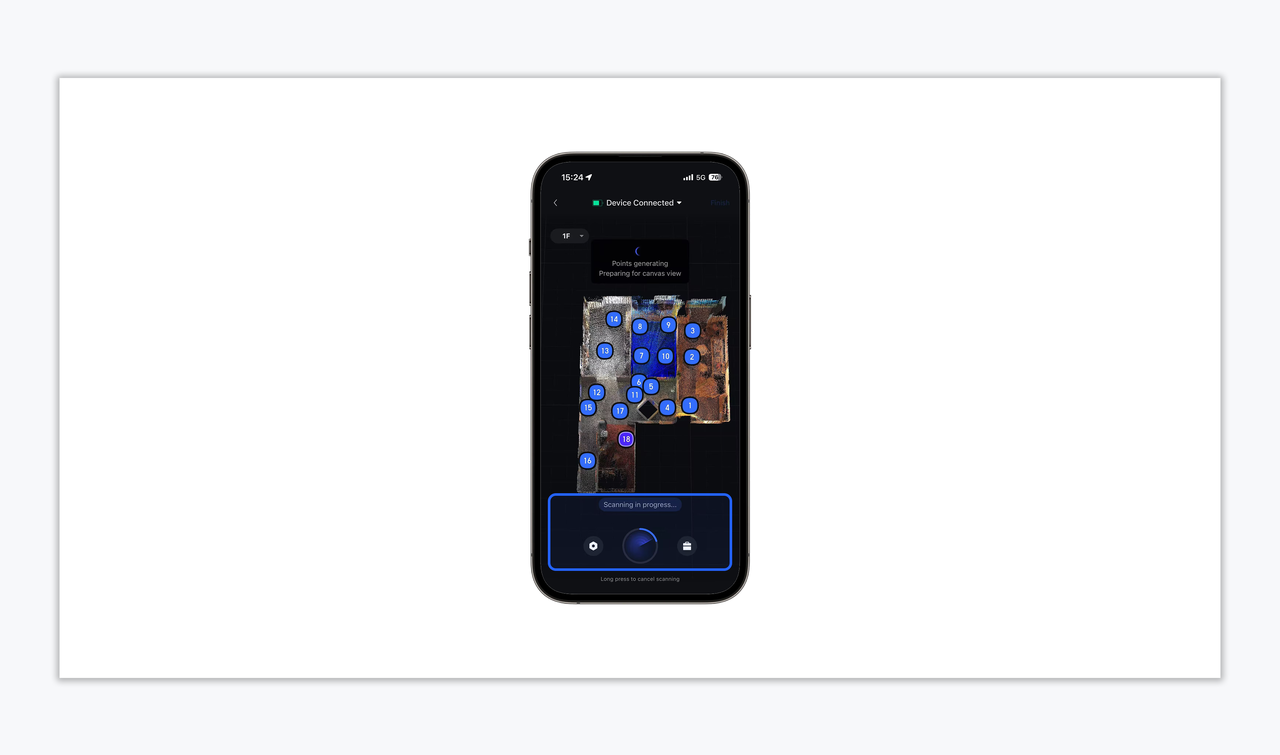
Once you enter the capture canvas, you will see your previous scan points.
- Key Requirement: To ensure the new scan data stitches correctly with the old data, the first new point must have a clear "line-of-sight" (co-visibility) with at least one existing historical point.
- If there is no overlap or visual connection between the new and old positions, the automatic stitching process will fail.
Start Scanning
Positioning: Place the tripod and the Galois scanner in the desired position.
Preparation: Clear the area (ensure all objects remain in their original positions and no people or moving items are in the shot) and tap the "Scan" button in the App.
Consistency (Crucial): When continuing a scan, it is best to maintain the space in the same state as it was during the previous capture.
Note: Moving furniture or changing the environment (e.g., opening/closing doors) may cause automatic stitching to fail.
Pro Tips for Success
- Stitching Issues: If automatic stitching fails, try moving the tripod closer to a previous point or ensure there are no physical obstacles (like doors or pillars) blocking the view between points.
- Data Integrity: Always wait for the "Download Cloud Data" progress bar to reach 100% before moving the scanner to ensure all historical reference points are loaded correctly.
Was this article helpful?
YesNo